
How to Install a Divi Book Landing Page (Step-by-Step Guide)
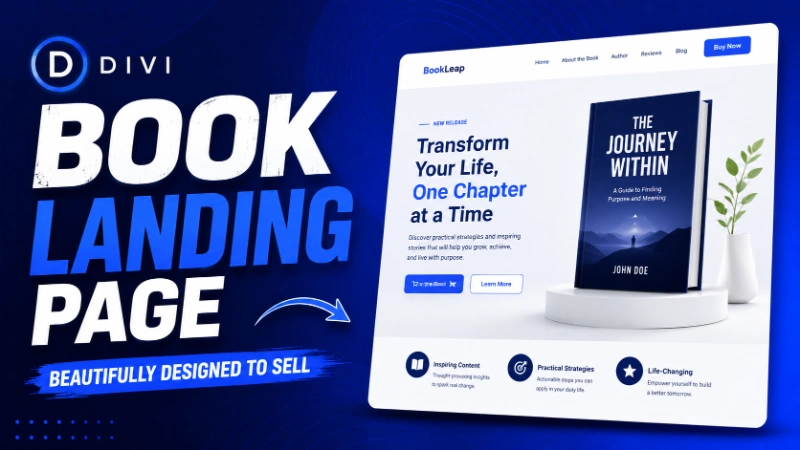
Table of Contents
How to Install the Book Flow Landing Page Template in Divi 5
Installing the Book Flow Landing Page in Divi 5 only takes a few minutes. Simply create a page, launch the Divi Builder, import the included JSON layout, and customize the content to match your brand.
Last verified on Divi 5.4 with WordPress 7.0 (June 2026). Interface labels may differ slightly in future Divi releases.
Whether you’re promoting a physical book, an ebook, or any digital product, Book Flow provides a professionally designed landing page that you can launch quickly without building everything from scratch. In this guide, we’ll walk through the complete installation process and highlight a few customization tips that will save you time.
In this tutorial, we’ll show you exactly how to customize a Divi Book Landing Page after importing the template. You’ll learn how to replace images, edit content, update pricing, change call-to-action buttons, and make the page match your brand—all without writing a single line of code.
What Is the Book Flow Landing Page Template?
The Book Flow Landing Page is a professionally designed Divi layout built specifically for book launches, digital products, lead generation, and promotional campaigns.
Instead of starting with an empty page, you import a ready-made layout containing sections for your hero banner, features, testimonials, pricing, call-to-action buttons, and more. After importing, all you need to do is replace the demo content with your own text, images, and links.
Since Divi 5 is built on a React-based Visual Builder, importing and editing layouts is fast and intuitive. It’s more than just an update to previous versions. Divi 5 introduces a rebuilt framework designed for better scalability and future development.
Before You Begin
Before importing the layout, make sure you have the following:
- WordPress installed
- Divi 5 activated
- The Book Flow template package downloaded from DiviFlow, or a similar template from our Divi layout packs
- The file named Book Flow - Landing Page.json
Having everything ready beforehand makes the installation process much smoother.
Step 1: Create a New Page
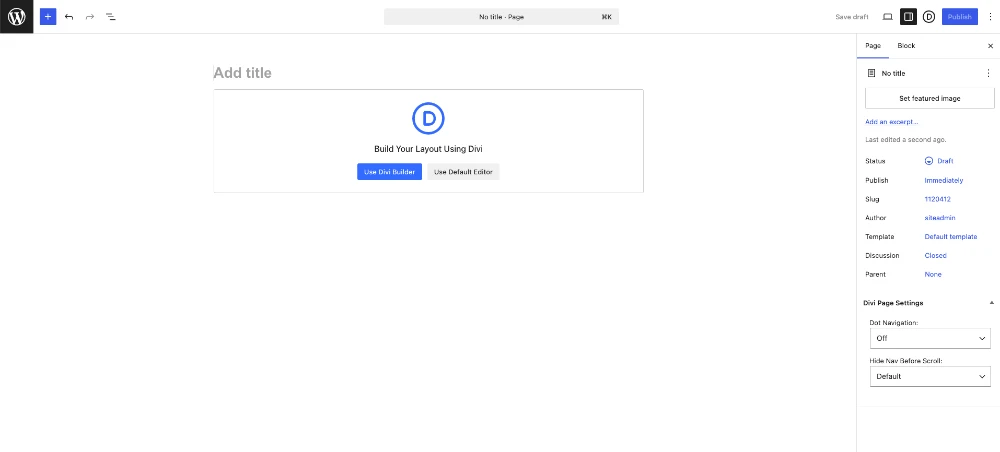 The first step is creating the page where the landing page will live.
From your WordPress dashboard, navigate to:
Pages → Add New
Give your page a descriptive title that matches your campaign or product.
Next, locate the Template option in the right sidebar.
For the Book Flow template, select Blank Page.
Why Choose the Blank Page Template?
Selecting the Blank Page template prevents your active theme from automatically displaying its default header and footer.
This allows the Book Flow layout to display exactly as it was designed, including its own custom header and footer sections.
If you’re already using the Divi Theme Builder to manage a global website header and footer, you can leave the default page template selected instead. For a practical walkthrough of editing a landing page header in Divi 5, see our tutorial on customizing the Book Leap landing page header.
Tip: One thing that trips people up the first time is forgetting which template controls the page. If you’re using a custom Divi Theme Builder template, it can override the page layout you’re editing. We’ve seen this cause confusion more often than almost anything else.
Step 2: Launch the Divi Builder
Once your page is ready, click Use Divi Builder.
After a few moments, the Divi 5 Visual Builder will load and you’ll be ready to import your landing page.
Because Divi 5 uses a modern React-based builder, the editing experience is smoother and more responsive than previous generations of Divi.
Step 3: Import the Book Flow Layout
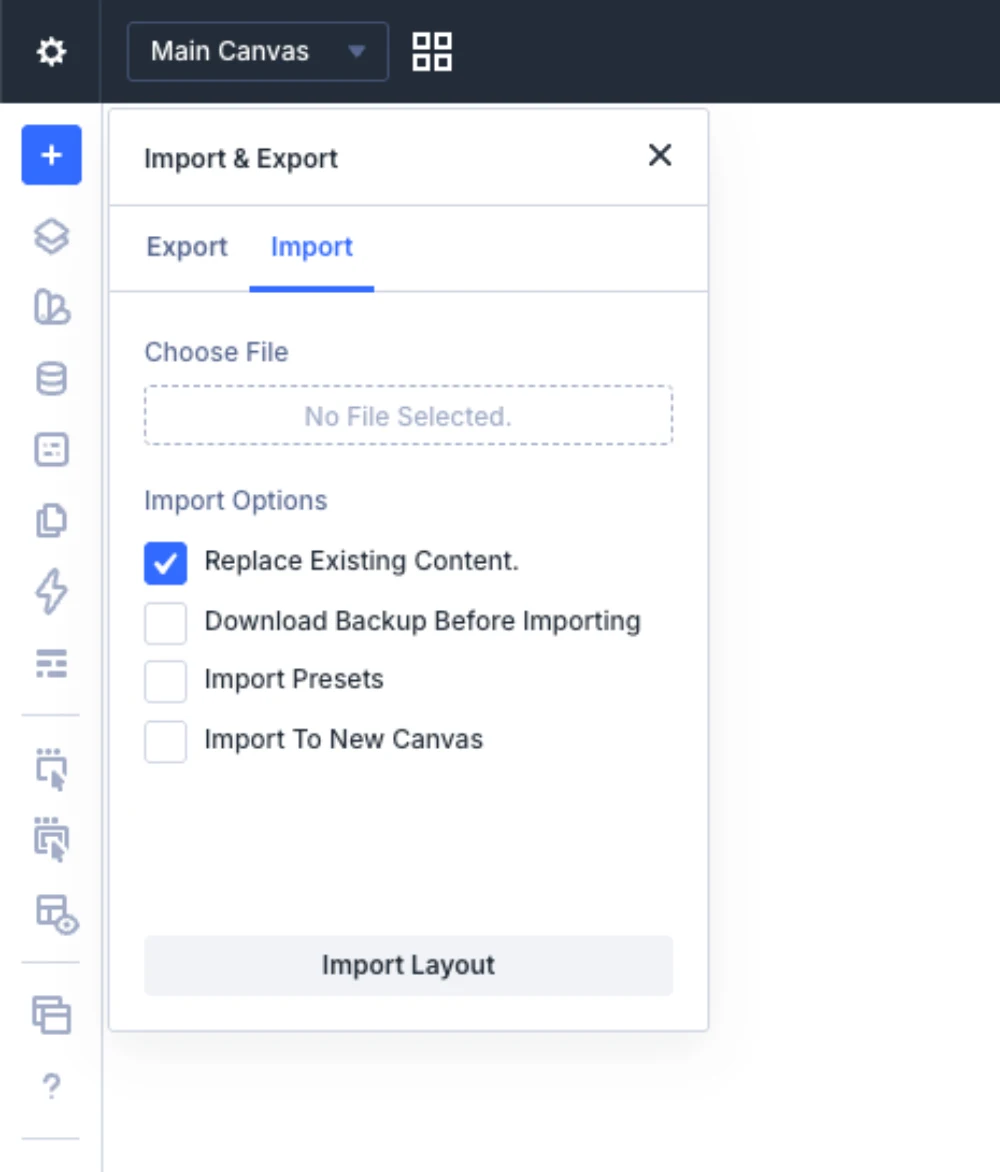
Importing the layout is the fastest way to recreate the complete Book Flow design.
Inside the Visual Builder:
- Select the Settings (Gear) icon in the top-left corner.
- Choose Import.
- Click Choose File.
- Select Book Flow - Landing Page.json.
- Leave the default import settings unchanged.
- Click Import Layout.
Within a few seconds, Divi imports the entire landing page, including every section and design element. For a general walkthrough of importing Divi layout files, see our layout import documentation.
Step 4: Customize Your Landing Page
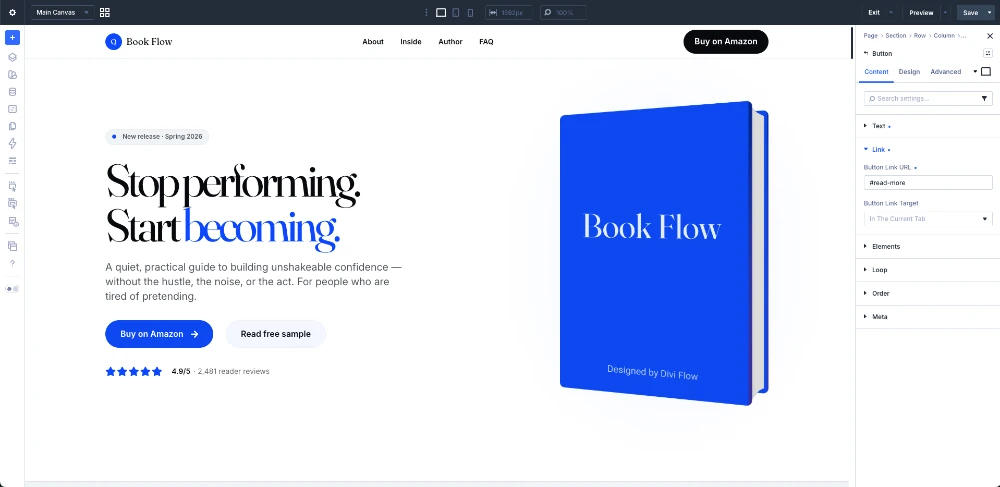
After importing, the page is fully editable using Divi’s Visual Builder.
The first items you’ll usually want to personalize include:
- Headlines
- Images
- Book cover artwork
- Colors
- Fonts
- Buttons
- Pricing
- Testimonials
- Call-to-action text
The layout has been intentionally designed to be lightweight and easy to customize, so these changes typically only take a few minutes. For more advanced design customization options like aspect ratio controls and image presets, see our guide on Divi 5 aspect ratio controls and image presets.
Update the Pricing Section
The pricing section is usually the first area you’ll want to modify.
Replace the demo pricing with your own product pricing, subscription details, or package information.
You’ll also want to update the purchase buttons so they point to your checkout page instead of the placeholder links.
Replace the Default Button Links
By default, the template uses the #buy anchor link.
This creates a smooth scrolling experience that takes visitors directly to the pricing section.
If your visitors should purchase through WooCommerce, Stripe, Gumroad, PayPal, or another platform, simply replace the anchor link with your own checkout URL. Building a full store? See our complete guide to building a WooCommerce store with Divi 5.
Don’t forget to update the primary button in the top-right corner of the page as well. For tips on turning more visitors into buyers, read our conversion optimization guide for Divi.
Best Practices After Importing
The template is ready to use immediately after importing, but spending a few extra minutes optimizing it will improve both user experience and search visibility.
Before publishing, it’s worth checking a few important items:
- Replace all placeholder images with optimized WebP or AVIF images. Our Divi performance optimization guide shows how to get the most out of Divi 5’s new rendering engine. If images fail to appear after importing, our SVG troubleshooting guide explains how to fix it.
- Add descriptive alt text to every image.
- Verify every button destination.
- Review your heading hierarchy and page metadata. See our Divi SEO best practices for on-page optimization tips.
- Test the page on mobile devices. For comprehensive mobile optimization tips, see our Divi 5 mobile responsive design tutorial.
- Ensure colors meet accessibility contrast guidelines.
- Preview the complete purchase flow.
These small improvements help create a faster, more accessible landing page while providing a better experience for visitors.
Troubleshooting Common Import Issues
Most layout imports work without any issues, but occasionally you may encounter a display problem.
One common situation occurs when the Visual Builder appears to show an outdated version of the layout immediately after importing.
In our experience, clearing the browser cache or Divi’s cache usually resolves the issue. This is a known behavior that can occur after importing layouts into Divi.
Need Help?
If you run into any issues while installing or customizing the Book Flow Landing Page template, our support team is here to help.
You can reach us anytime at support@diviflow.com or through our contact page.
If you haven’t downloaded the template yet, you’ll find it on DiviFlow along with more Divi layouts and templates. For a complete one-page author site, explore our Book Leap author website layout and its setup documentation.
Final Thoughts
Installing the Book Flow Landing Page Template in Divi 5 is a straightforward process that requires only a few minutes. Once imported, you have complete control over every section, allowing you to tailor the design to your book, product, or business without starting from scratch.
If you’re looking for more Divi templates, tutorials, and performance tips, explore our latest resources on DiviFlow. For additional customization options, check out our guides on Divi 5 aspect ratio controls and image presets, Divi 5 CSS grid layouts, and building a WooCommerce store with Divi 5. You can also save on multiple templates with our DiviFlow membership.
Frequently Asked Questions
Can I use the Book Flow template with Divi 4?
The template is designed for Divi 5. While some layouts may partially work in older versions, the recommended environment is Divi 5.4 for the best compatibility and editing experience.
Do I need to import every file in the template package?
No. For this tutorial, you only need to import the Book Flow - Landing Page.json layout file.
Can I keep my website’s global header and footer?
Yes. Simply leave the page template set to the default instead of selecting Blank Page if you’re managing headers and footers with the Divi Theme Builder.
Why doesn’t my imported layout look correct?
If the layout appears outdated or styles seem missing, clear Divi’s cache, your caching plugin (if applicable), your CDN cache, and finally your browser cache. This resolves most import-related display issues.
Is the template SEO-friendly?
Yes. The layout is built with clean Divi modules and can be optimized further by adding your own metadata, descriptive headings, optimized images, and meaningful internal links.
About the Author

MD Nurullah
MD Nurullah is a web developer and content creator at DiviFlow, focused on building modern websites and creating helpful resources for the WordPress community.